> ## Documentation Index
> Fetch the complete documentation index at: https://dripart-docs-wan3-30off-promo.mintlify.site/llms.txt
> Use this file to discover all available pages before exploring further.

# ComfyUI에서 Bria 배경 제거 사용하기

> ComfyUI에서 Bria 파트너 노드를 사용하여 이미지 및 비디오 배경 제거, 그린스크린, 배경 교체를 수행하는 방법을 알아보세요

Bria의 AI 배경 처리 모델이 이제 ComfyUI에서 파트너 노드를 통해 사용 가능합니다. 이 페이지에서는 **이미지 배경 제거**, **비디오 배경 제거**, **투명 비디오 배경**, **비디오 그린스크린**, **비디오 배경 교체**에 대해 다룹니다.

<Tip>
  파트너 노드를 사용하려면 올바르게 로그인되어 있고 허가된 네트워크 환경을 사용하고 있는지 확인해야 합니다. 파트너 노드를 사용하기 위한 구체적인 요구사항은 문서의 [파트너 노드 개요](/ko/tutorials/partner-nodes/overview) 섹션을 참조해 주세요.
</Tip>

<Tip>
  <Tabs>
    <Tab title="로컬 사용자">
      ComfyUI가 최신 버전으로 업데이트되었는지 확인하세요.

      * [ComfyUI 다운로드](https://www.comfy.org/download)
      * [업데이트 가이드](/ko/installation/update_comfyui)

      이 가이드의 워크플로는 [워크플로 템플릿](/ko/interface/features/template)에서 확인할 수 있습니다.
      템플릿에서 찾을 수 없다면, 귀하의 ComfyUI가 오래된 버전일 수 있습니다.

      워크플로를 로드할 때 노드가 누락되는 경우, 가능한 원인:

      1. 최신 ComfyUI 버전(최신 테스트 버전(nightly))을 사용하고 있지 않음
      2. 일부 노드가 시작 시 가져오기에 실패함
    </Tab>

    <Tab title="클라우드 사용자">
      * [클라우드](https://cloud.comfy.org)는 ComfyUI 안정판 출시 후 업데이트됩니다.

      따라서 이 문서에서 핵심 노드가 누락된 것을 발견했다면, 그 이유는 새로운 핵심 노드가 아직 최신 안정판에 공개되지 않았기 때문일 수 있습니다. 다음 안정판 출시를 기다려 주세요.
    </Tab>
  </Tabs>
</Tip>

<h3 id="utility_bria_remove_image_background">
  Bria: 이미지 배경 제거
</h3>

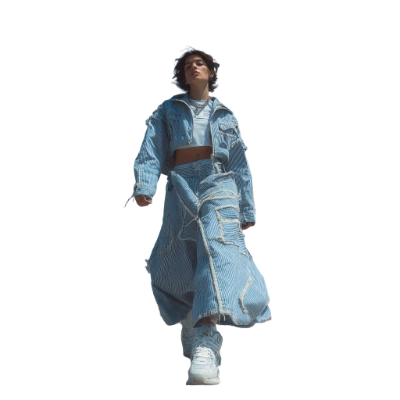
이미지를 업로드하면 Bria API를 사용하여 자동으로 배경이 제거됩니다. 결과는 투명 배경의 이미지로 반환됩니다.
<img src="https://raw.githubusercontent.com/Comfy-Org/workflow_templates/main/templates/utility_bria_remove_image_background-1.webp" alt="Bria: 이미지 배경 제거 워크플로 미리보기" />

<CardGroup cols={2}>
  <Card title="Comfy Cloud에서 실행" icon="cloud" href="https://cloud.comfy.org/?template=utility_bria_remove_image_background&utm_source=docs&utm_medium=referral&utm_campaign=background-removal">
    Comfy Cloud에서 실행
  </Card>

  <Card title="워크플로 다운로드" icon="download" href="https://github.com/Comfy-Org/workflow_templates/blob/main/templates/utility_bria_remove_image_background.json">
    JSON 다운로드 또는 템플릿 라이브러리에서 "Bria: 이미지 배경 제거" 검색
  </Card>
</CardGroup>

**입력 자료**

이 파일을 해당 `LoadImage` 노드에 업로드하세요:

<CardGroup cols={2}>
  <Card title="denim_girl.png" icon="image" href="https://raw.githubusercontent.com/Comfy-Org/workflow_templates/main/input/denim_girl.png">
    `LoadImage` 노드 26 · `denim_girl.png`
  </Card>
</CardGroup>

<div style={{display: 'grid', gridTemplateColumns: 'repeat(2, minmax(0, 1fr))', gap: '1rem', alignItems: 'start'}}>
  <img src="https://raw.githubusercontent.com/Comfy-Org/workflow_templates/main/input/denim_girl.png" alt="입력 이미지" style={{width: '100%', height: 'auto', objectFit: 'contain'}} />

  <img src="https://raw.githubusercontent.com/Comfy-Org/workflow_templates/main/output/utility_bria_remove_image_background.png" alt="Bria: 이미지 배경 제거 예시 출력" style={{width: '100%', height: 'auto', objectFit: 'contain'}} />
</div>

## 비디오 배경 처리

Bria의 비디오 배경 처리 노드를 사용하면 비디오 배경을 제거, 교체 또는 크로마키 효과를 적용할 수 있습니다. 입력 비디오는 60초 이하여야 합니다.

<h3 id="api_bria_remove_video_background">
  Bria: 비디오 배경 제거
</h3>

비디오 배경을 원하는 단색으로 교체합니다.

<img src="https://raw.githubusercontent.com/Comfy-Org/workflow_templates/main/templates/api_bria_remove_video_background-1.webp" alt="Bria: 비디오 배경 제거 워크플로 미리보기" />

<CardGroup cols={2}>
  <Card title="Comfy Cloud에서 실행" icon="cloud" href="https://cloud.comfy.org/?template=api_bria_remove_video_background&utm_source=docs&utm_medium=referral&utm_campaign=background-removal">
    Comfy Cloud에서 실행
  </Card>

  <Card title="워크플로 다운로드" icon="download" href="https://github.com/Comfy-Org/workflow_templates/blob/main/templates/api_bria_remove_video_background.json">
    JSON 다운로드 또는 템플릿 라이브러리에서 "Bria: 비디오 배경 제거" 검색
  </Card>
</CardGroup>

**입력 자료**

이 파일을 해당 `LoadVideo` 노드에 업로드하세요:

<CardGroup cols={2}>
  <Card title="spear_warrior.mp4" icon="video" href="https://raw.githubusercontent.com/Comfy-Org/workflow_templates/main/input/spear_warrior.mp4">
    `LoadVideo` 노드 4 · `spear_warrior.mp4`
  </Card>
</CardGroup>

<h3 id="api_bria_remove_video_background_transparent">
  Bria: 투명 비디오 배경 제거
</h3>

비디오에서 배경을 제거하고 투명 배경으로 출력합니다.

<img src="https://raw.githubusercontent.com/Comfy-Org/workflow_templates/main/templates/api_bria_remove_video_background_transparent-1.webp" alt="Bria: 투명 비디오 배경 제거 워크플로 미리보기" />

<CardGroup cols={2}>
  <Card title="Comfy Cloud에서 실행" icon="cloud" href="https://cloud.comfy.org/?template=api_bria_remove_video_background_transparent&utm_source=docs&utm_medium=referral&utm_campaign=background-removal">
    Comfy Cloud에서 실행
  </Card>

  <Card title="워크플로 다운로드" icon="download" href="https://github.com/Comfy-Org/workflow_templates/blob/main/templates/api_bria_remove_video_background_transparent.json">
    JSON 다운로드 또는 템플릿 라이브러리에서 "Bria: 투명 비디오 배경 제거" 검색
  </Card>
</CardGroup>

**입력 자료**

이 파일을 해당 `LoadVideo` 노드에 업로드하세요:

<CardGroup cols={2}>
  <Card title="ad_video_demo.mp4" icon="video" href="https://raw.githubusercontent.com/Comfy-Org/workflow_templates/main/input/ad_video_demo.mp4">
    `LoadVideo` 노드 5 · `ad_video_demo.mp4`
  </Card>
</CardGroup>

<h3 id="api_bria_video_green_screen">
  Bria: 비디오 그린스크린
</h3>


전문가용 크로마키 초록색 또는 파란색 스크린 효과를 비디오에 적용합니다. broadcast\_green, chroma\_green, blue\_screen 등 여러 프리셋 옵션을 제공합니다.
<img src="https://raw.githubusercontent.com/Comfy-Org/workflow_templates/main/templates/api_bria_video_green_screen-1.webp" alt="Bria: 비디오 그린스크린 워크플로 미리보기" />

<CardGroup cols={2}>
  <Card title="Comfy Cloud에서 실행" icon="cloud" href="https://cloud.comfy.org/?template=api_bria_video_green_screen&utm_source=docs&utm_medium=referral&utm_campaign=background-removal">
    Comfy Cloud에서 실행
  </Card>

  <Card title="워크플로 다운로드" icon="download" href="https://github.com/Comfy-Org/workflow_templates/blob/main/templates/api_bria_video_green_screen.json">
    JSON 다운로드 또는 템플릿 라이브러리에서 "Bria: 비디오 그린스크린" 검색
  </Card>
</CardGroup>

**입력 자료**

이 파일을 해당 `LoadVideo` 노드에 업로드하세요:

<CardGroup cols={2}>
  <Card title="investigator.mp4" icon="video" href="https://raw.githubusercontent.com/Comfy-Org/workflow_templates/main/input/investigator.mp4">
    `LoadVideo` 노드 5 · `investigator.mp4`
  </Card>
</CardGroup>

<h3 id="api_bria_video_replace_background">
  Bria: 비디오 배경 교체
</h3>

비디오 배경을 사용자 정의 이미지나 다른 비디오로 교체합니다.

<img src="https://raw.githubusercontent.com/Comfy-Org/workflow_templates/main/templates/api_bria_video_replace_background-1.webp" alt="Bria: 비디오 배경 교체 워크플로 미리보기" />

<CardGroup cols={2}>
  <Card title="Comfy Cloud에서 실행" icon="cloud" href="https://cloud.comfy.org/?template=api_bria_video_replace_background&utm_source=docs&utm_medium=referral&utm_campaign=background-removal">
    Comfy Cloud에서 실행
  </Card>

  <Card title="워크플로 다운로드" icon="download" href="https://github.com/Comfy-Org/workflow_templates/blob/main/templates/api_bria_video_replace_background.json">
    JSON 다운로드 또는 템플릿 라이브러리에서 "Bria: 비디오 배경 교체" 검색
  </Card>
</CardGroup>

**입력 자료**

이 파일들을 해당 `LoadVideo` 및 `LoadImage` 노드에 업로드하세요:

<CardGroup cols={2}>
  <Card title="stained_window_vintage_woman.mp4" icon="video" href="https://raw.githubusercontent.com/Comfy-Org/workflow_templates/main/input/stained_window_vintage_woman.mp4">
    `LoadVideo` 노드 4 · `stained_window_vintage_woman.mp4`
  </Card>

  <Card title="gothic_hall_light_rays.png" icon="image" href="https://raw.githubusercontent.com/Comfy-Org/workflow_templates/main/input/gothic_hall_light_rays.png">
    `LoadImage` 노드 8 · `gothic_hall_light_rays.png`

  </Card>
</CardGroup>

<div style={{display: 'grid', gridTemplateColumns: 'repeat(2, minmax(0, 1fr))', gap: '1rem', alignItems: 'start'}}>
  <img src="https://raw.githubusercontent.com/Comfy-Org/workflow_templates/main/input/gothic_hall_light_rays.png" alt="gothic_hall_light_rays.png" style={{width: '100%', height: 'auto', objectFit: 'contain'}} />
</div>